
Shazbot app icon

Shazbot

A native macOS menu bar SSH tunnel manager. Define your servers and port forwards once, then bring tunnels up and down from the menu bar.

Coming to the Mac App Store

Requires macOS 14 (Sonoma) or later · Apple silicon & Intel.

A look inside

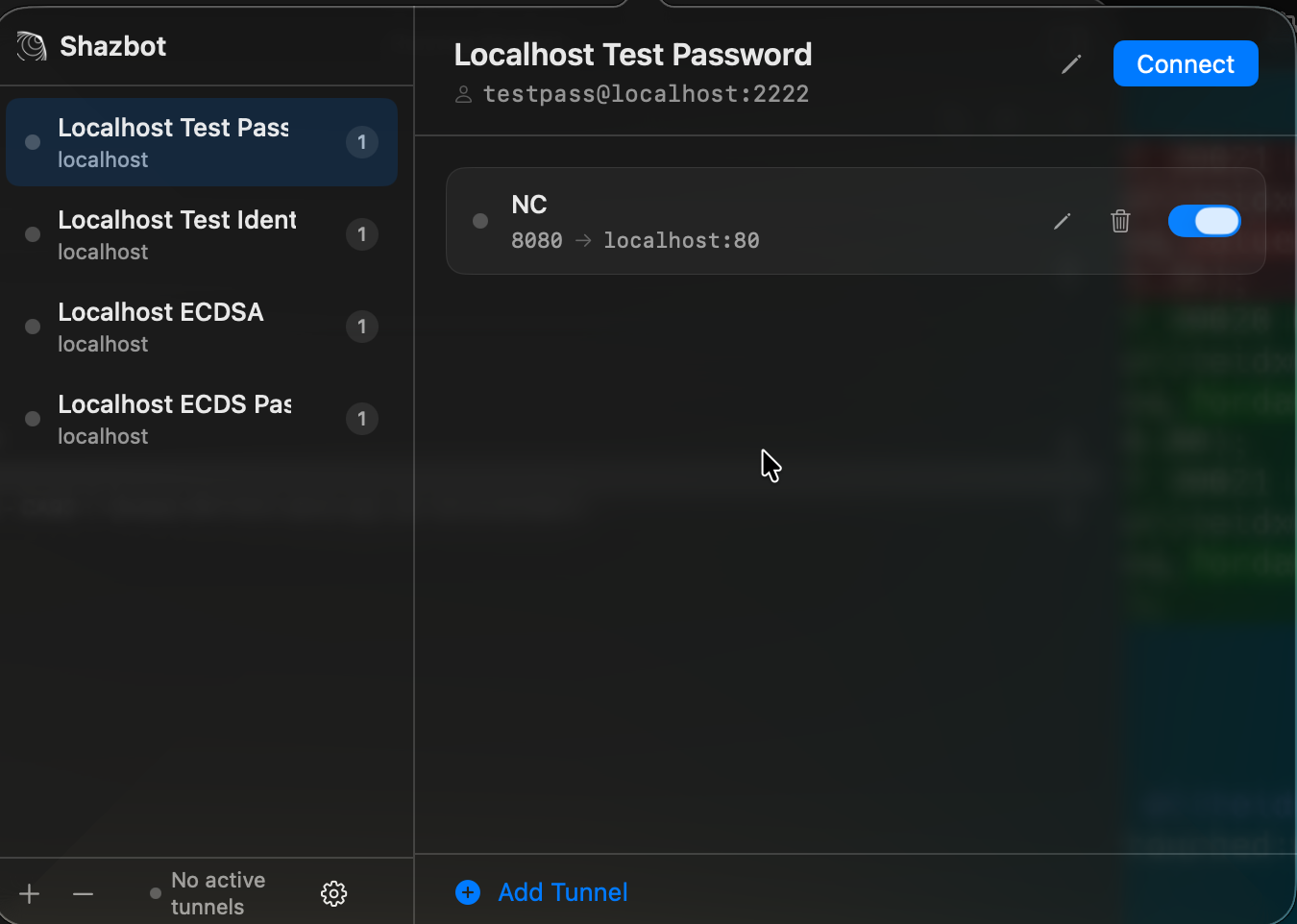
Shazbot's main window: a server sidebar on the left and tunnel detail on the right.
Servers on the left, their tunnels on the right — bring each one up or down with a switch.
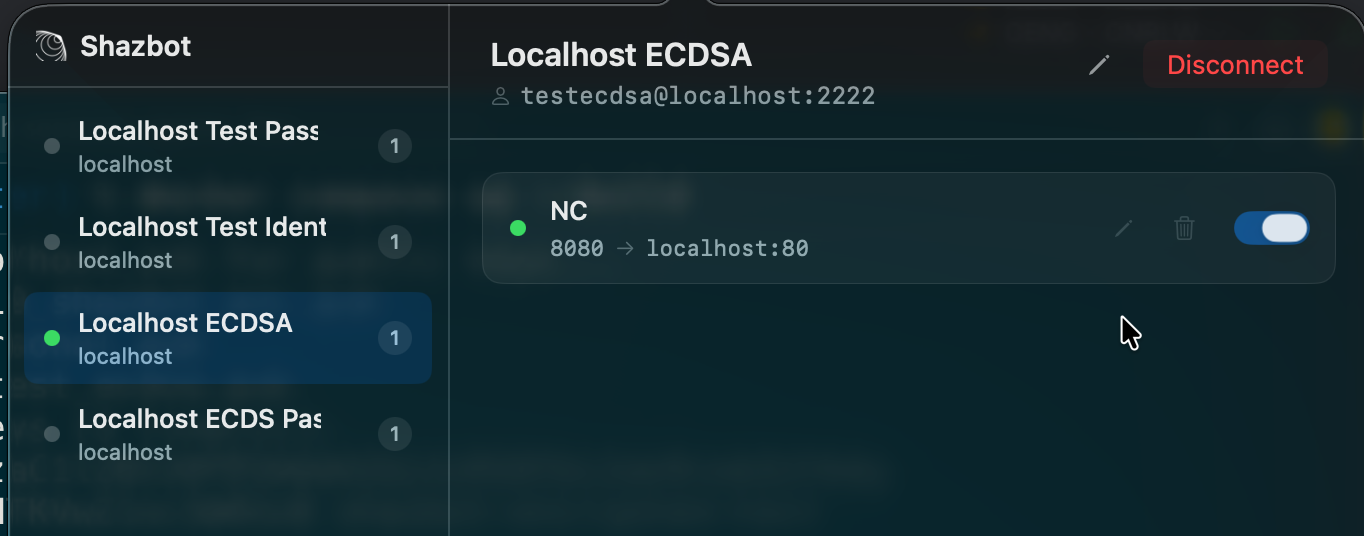
A server with an active, connected tunnel shown in green.
Live tunnels show green at a glance.
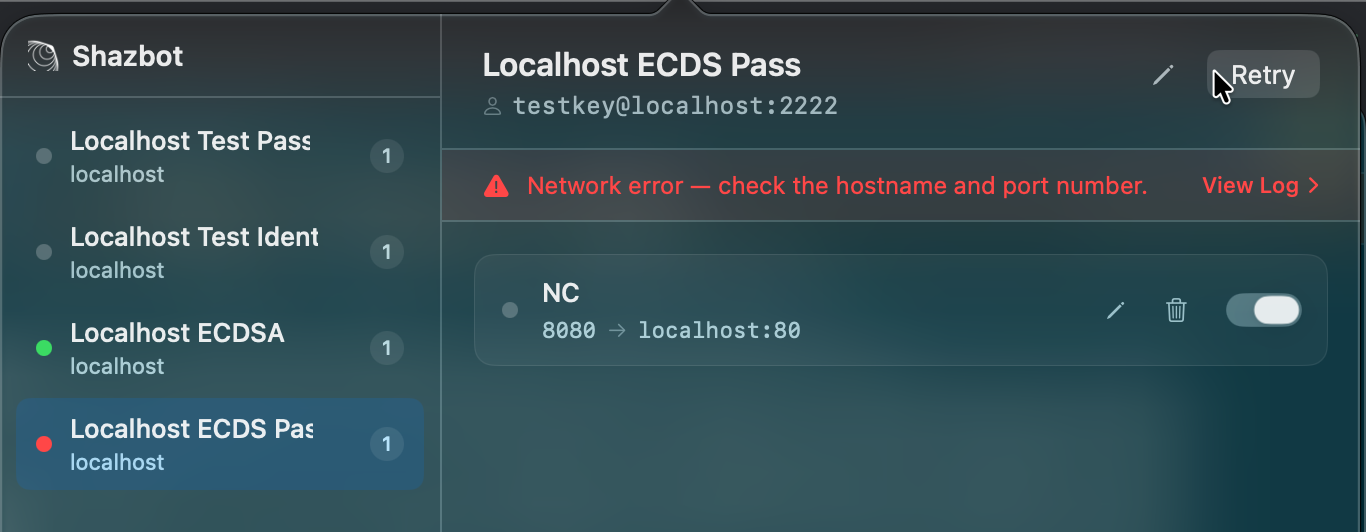
A failed connection showing a red error banner with a link to view the log.
Failures surface a clear banner and a full connection log.
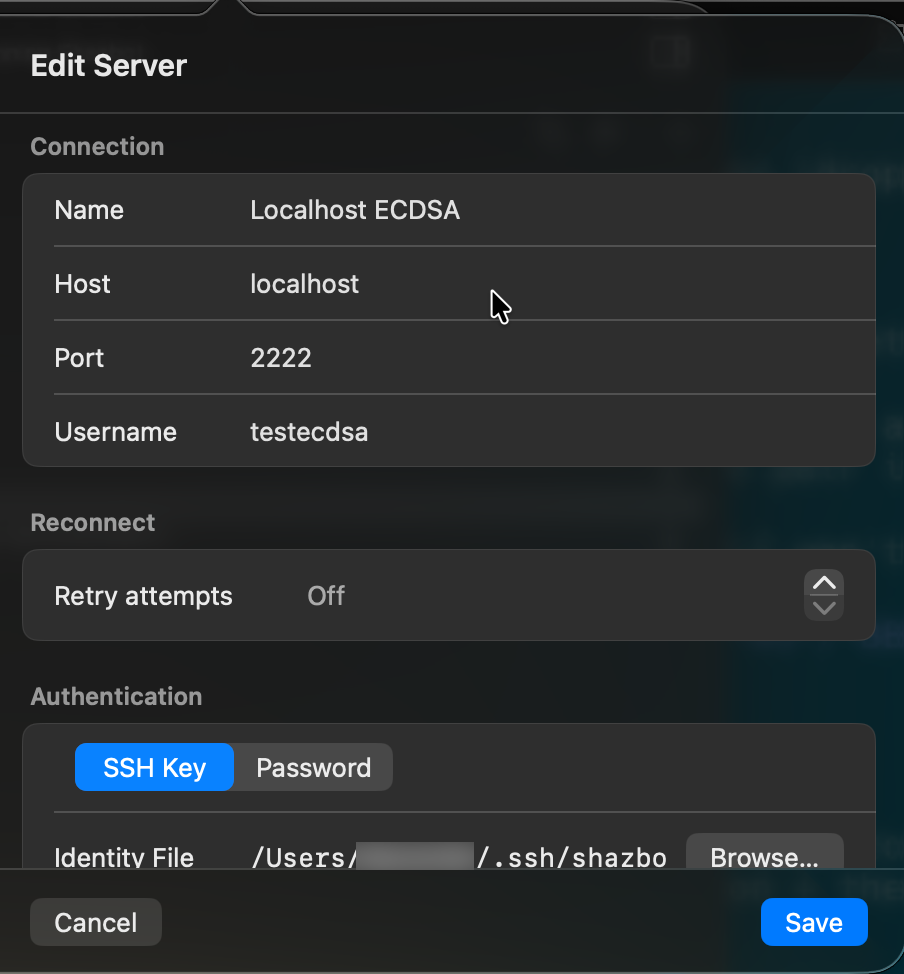
The server editor, configuring connection details and authentication.
Define a server once: host, port, auth, and retries.
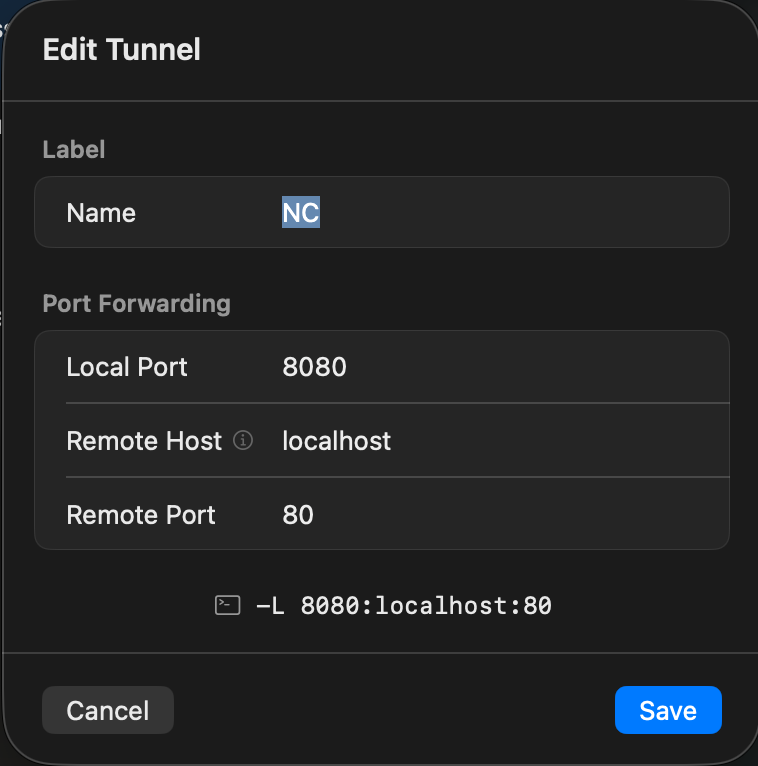
The tunnel editor, showing local and remote port forwarding fields.
Each forward is a plain -L mapping, spelled out for you.
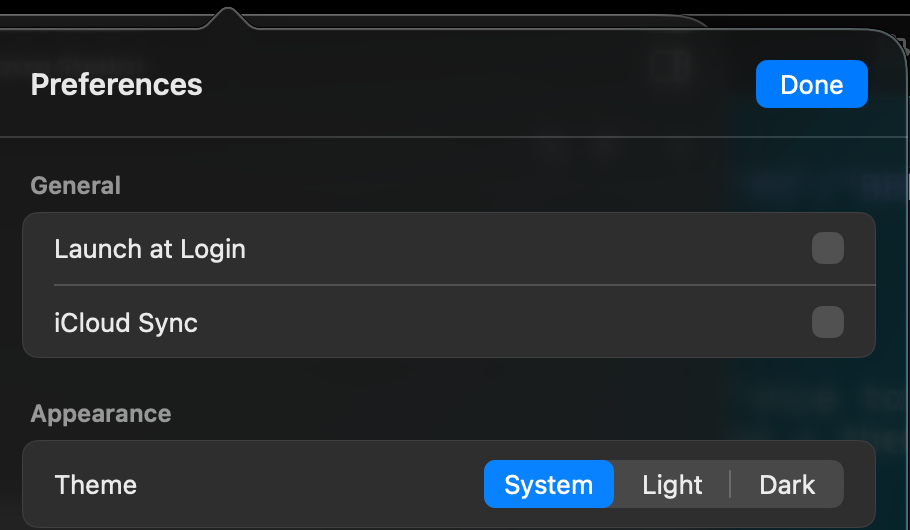
Preferences: launch at login, iCloud sync, and theme.
Launch at login, optional iCloud sync, and a theme to match your Mac.

Why Shazbot

Managing SSH tunnels by hand means juggling terminal windows and long ssh -L commands. Shazbot keeps your servers and forwards organized in one tidy popover, and keeps the connections alive in the background.

It's a true native Mac app — a lightweight menu bar utility with no Dock icon, built entirely in Swift and SwiftUI. SSH is handled by a pure-Swift stack, so Shazbot never shells out to the ssh binary or spawns subprocesses.

Features

Menu bar native

Lives in the menu bar, not the Dock. A two-panel popover: servers on the left, tunnels on the right.

Pure-Swift SSH

Connections run on a native Swift SSH stack — no subprocesses, no bundled OpenSSH binary.

Flexible authentication

Password or key files — ed25519, RSA, and ECDSA. Passphrase-protected ed25519 and RSA keys are supported.

Auto-reconnect

Optional per-server retries keep tunnels alive across flaky networks and dropped connections.

Connection diagnostics

If a connection fails, a built-in log captures every step so you can review it or copy it to support.

iCloud sync

Optionally sync your server list across your Macs through your own iCloud account. Off by default.

Private by design

Passwords and key passphrases live in your macOS Keychain. Nothing is sent to us or anyone else.

Launch at login

Start Shazbot automatically and have your tunnels ready when you sit down.

Frequently asked

What authentication methods are supported?

Passwords, and SSH key files in ed25519, RSA, and ECDSA (P-256/384/521) formats. Passphrase-protected ed25519 and RSA keys are supported — Shazbot prompts you to store the passphrase securely in your Keychain.

Does Shazbot use the SSH agent (ssh-agent / $SSH_AUTH_SOCK)?

No. Shazbot runs in the macOS App Sandbox, which blocks access to the SSH agent socket. Instead, point Shazbot at a key file via Browse in server settings (or use password authentication).

Where are my passwords and keys stored?

Passwords and key passphrases are stored in the macOS Keychain. Your private key files stay wherever you keep them — Shazbot only reads them to connect. Server details are stored locally on your Mac, and optionally in your own iCloud key-value store if you enable sync. None of this is ever transmitted to Zardecki.dev. See the privacy policy.

What macOS version do I need?

macOS 14 (Sonoma) or later, on both Apple silicon and Intel Macs.

A connection failed — how do I find out why?

When a connection fails, the server shows a red banner. Click it to open the connection log, which records each step of the attempt and the underlying error. Use Copy or Save… to send it along when you contact support.

Known issues

Passphrase-protected ECDSA keys are not yet supported. Encrypted ed25519 and RSA keys work today. If your ECDSA key is encrypted, Shazbot will tell you so — use an ed25519 or RSA key, or an unencrypted ECDSA key, in the meantime. ECDSA passphrase support is planned for a future update.

Found something else? Please let me know.